Showing posts with label iPhone. Show all posts

Wednesday, 17 September 2014

Apple Releases iOS 8 with Major Accessibility Improvements


Today, Apple released iOS 8 the latest software update for iPhone, iPad, and iPod Touch. The new software, which is available for free, includes many new features and enhancements, including new accessibility features and tools that will allow developers to make the next generation of apps. Apple has not stood still in terms accessibility and as a result, iOS 8 is truly the most accessible and inclusive iOS version to date.

Some of the most exciting new accessibility features are included in iOS are ready to use right after updating. These features are developed by Apple, and most are found under Settings > General > Accessibility.

Speak Screen is one of the new accessibility features that allows users to quickly and easily have content on the screen read with text-to-speech with a simple two finger swipe down gesture. Unlike older versions of iOS which required users to highlight sections that they wished to be spoken, Speak Screen does not require any highlighting. Users can even ask Siri to �speak the screen� to start text-to-speech.

Apple�s highly acclaimed screen reader, VoiceOver, also received some substantial updates. Now, VoiceOver users can enter text using a system-wide virtual six-dot Braille keyboard. Zoom is also vastly improved with windowed magnification and filters. Guided Access and AssistiveTouch have seen smaller improvements.

In addition, all accessibility features that use speech will now be able to use the Alex text-to-speech voice that many Mac users enjoy. All of these features are included with the iOS 8 update. Stay tuned for in depth information about the features discussed above in the coming days and weeks.

With iOS 8, Apple has given developers tools to make the next generation of great apps. Hopefully, assistive app makers will be able to take advantage of these new features to help people with various needs. Developers can now make system wide keyboard apps. iOS keyboards will now be able to enter text into any app if the developer updates the app for iOS 8. For example, Fleksy and SwiftKey are expect to receive an update shortly to enable text entry into any app. Developers can also add the ability to unlock their app using Touch IDfinger print recognition for devices with Touch ID. Lastly, developers can create extensions to allow their app to perform functions within other apps. For example, a translation extension could be used within Safari to eliminate the need to switch apps.

These features open up a whole new world to app developers and it will be exciting to use some of the new apps that take advantage of these new developer features. While some apps have already been updated to take advantage of the new developer features in iOS, many have not been. Check back to read about some apps that are taking advantage of these new developer features in ways that can help people with disabilities.

iOS 8 is a free update that you can download now. Stay tuned to the Assistive Technology Blog to learn more about the new included accessibility features and about apps that take advantage of the new developer features.
Thursday, 17 July 2014

Too Much Background Noise when Recording Lectures with Smart Phone or Table Built-in Microphone? Check Out the Ampridge MightMic


Mobile devices are convenient tools that students use to record classes and lectures, reporters use to record news conferences, and business people use to record meetings. Some use note taking apps like Notability, Remarks, or Livescribe+ to augment their notes with audio recordings. The benefits of recording the audio can be minimized by poor quality recordings from built-in microphones.

Built-in microphones tend to do a poor job of isolating sounds which results in background noise that makes the desired sounds difficult to hear, especially for people with hearing impairments.

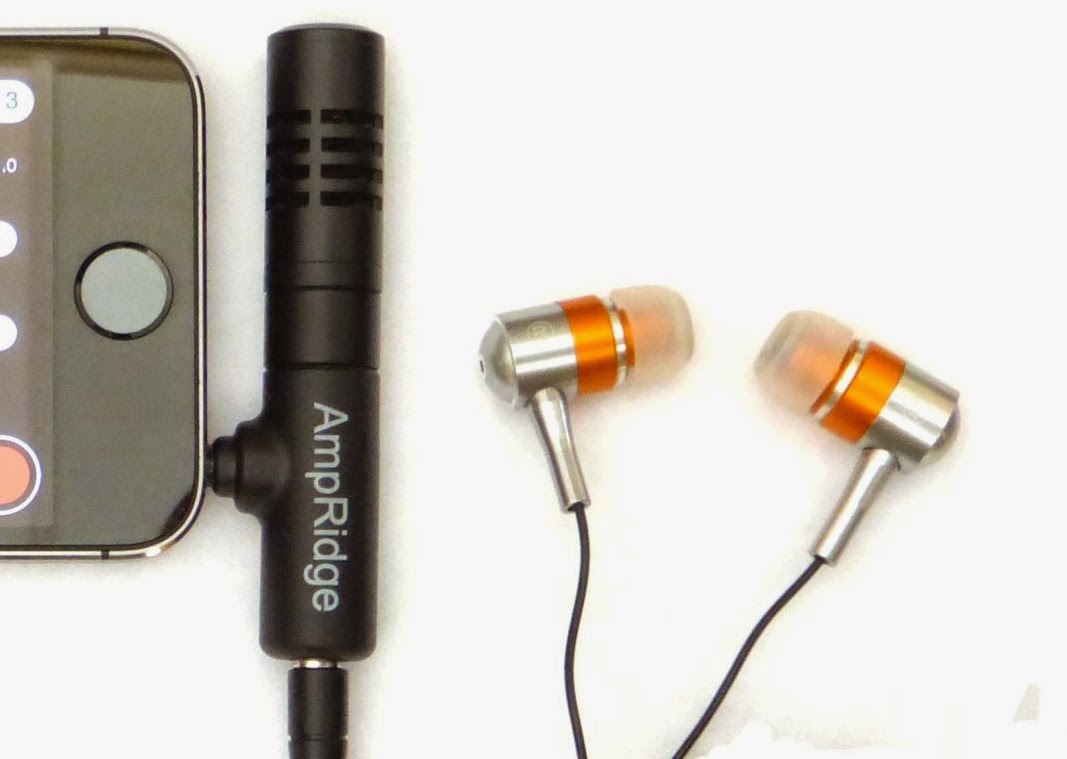
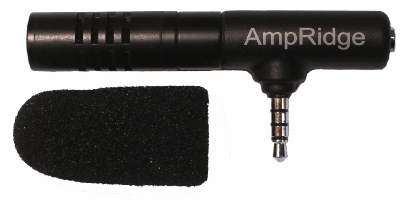
The AmpRidge MightyMic microphone plugs directly into the headphone jack of any smartphone, tablet, or computer that supports microphone input. It proves an alternative audio output jack so users can still plug in headphones while the microphone is plugged in. Its compact size makes it easy to use in class and makes in relatively discrete. The MightyMic microphone works well with an iPhone and is only slightly longer wider than the width of the phone. The microphone  even worked fine with my bulky iPhone case. Once plugged in you can angle the microphone towards the front of the room to capture the most important sounds. In my testing, the MightyMic microphone was on par with the built-in iPhone microphone for close range recording, but worked considerably better than the built-in microphone in a classroom or outdoor long range environment. The MightyMic microphone reduced background noise resulting in better sounding audio playback. If you frequently record classes, lectures, or meetings and are less than satisfied with your device's built-in microphone, the MightyMic mic is a good option to give your sound a boost. If you're looking for a big improvement in sound quality quality you may have to look towards more expensive options.

The Ampridge MightyMic retails for $70 on AmpRidge.com. Also included is a protective carrying pouch and foam protective cover.


Product was provide complimentary to reviewer for review


Sunday, 13 April 2014

Learning Ally Audio Update Includes Background Audio Support


Learning Ally, a provider of audio books for the blind and dyslexic, recently updated their iOS app. The free apps allows Learning Ally members to listen to their audio books while on the go. The new update brings a valuable  new feature to the app. Now, the app allows users to listen to their audio books while using other apps at the same time, a feature commonly called background audio. The update provides a more consistent experience for users who have come to expect background audio support in all apps. With the update users can listen to an audio book while looking up information on the internet, reading a note page, or even responding to an occasional text message. Along with background audio support comes the ability to control playback using control center or a headphones with a remote. The update is available for free and is compatible with iPhone, iPad, and iPod Touch. To take advantage of the app users must be members of Learning Ally. To learn more about Learning Ally click here.

Saturday, 15 March 2014

Voice Dream Reader Updated to Version 3.0: Read PDFs in Original Layout and More


Voice Dream Reader is an app for iPhone, iPad, and iPod Touch that supports people who prefer reading in different ways. Voice Dream can read documents from a number of sources with multiple high quality text-to-speech voices. Users can import PDFs, Word documents, text files, webpages, and even Bookshare books into the app. Once the text is loaded into the app you can listen to it using text-to-speech, highlight the text, search for a specific words or phrases, and get definitions for unknown words. Among many other uses, Voice Dream Reader is a terrific Bookshare book reader for students. Voice Dream also works very well with VoiceOver. Now, with newly released Voice Dream Reader version 3.0, new features have been added that makes the app even more useful.

Up until yesterday evening, Voice Dream only supported text. All images and formatting associated with a file were stripped away. With version 3.0 images and formatting within PDF files are retained. Now you can read a PDF in its original layout. Voice Dream still highlights each word as it is read aloud. It is easy to switch between layout view and text view depending on your preferences. Version 3.0 also includes more customization options. Users now have more control over the colors of the highlighting and spacing of the text. An improved web browser has been added that makes adding text from the web quicker and easier. New Ivona text-to-speech voices are also available for purchase in version 3.0.

With large PDF files page loading is slightly slow, but this problem only occur with very large files and does not effect text view performance.

In future updates image support maybe added for Bookshare books or other document types. I also hope iCloud sync will be added in a future update. At school I read my books on my iPhone and make new annotations, but when I get home and start reading on my iPad the annotations are stuck on the iPhone and I must search for the page that I left off on. iCloud sync would make this process much more seamless.

Voice Dream Reader is a must have app for iOS users with print disabilities or anyone who could benefit from reading with text-to-speech. Voice Dream Reader's well developed features make loading, reading, and annotating text easy. Knowing that the app has a developer that is open to feedback and actively developing new features is an added benefit. Voice Dream Reader costs $9.99 on the App Store. Click here to download the app. There is also a lite version of Voice Dream Reader that allows you to try it before you buy.

Click read more to view screenshots of Voice Dream Reader.


Sunday, 23 February 2014

Launch Center Pro: Speed Up Common Actions on iOS Devices


blue icon with rocket ship in the middleLaunch Center Pro is an app for iPhone, iPad, and iPod Touch that allows users to launch apps and simple tasks directly from the app. Instead of launching Safari, navigating to the search site, and typing in your search, for instance, Launch Center Pro lets you directly search Google or Wikipedia; Launch Center Pro also can be configured  by users to set up group email, instead of having to type in the email address of each recipient.

Launch Center Pro uses a simple interface to make it easy to simplify some of your common actions and launch them quickly. I frequently text my sister "where are you?" Instead of launching the Messages app, finding my sister's contact, and then typing the message, I created a Launch Center Pro action that sends a text to my sister saying, "where are you?" Now, when I want to text my sister, I just touch the icon for this action and a text saying "where are you?" is on its way to my sister.
,
Creating actions is easy with the built in action composer which gives users the ability to pick pre-made actions for apps they already have installed on their device. The action composer also allows users to customize the icon of the action to make it easier to find.

Launch Center Pro works with a number of apps, but support for more useful actions among third party apps is hit or miss. Some apps such as Prizmo integrate very well with the app allowing you to easily launch actions, but other apps such as Nike+ Running can be opened, but not further interacted with. It would be nice to be able to start a new run in Nike+ via Launch Center, but actions like that requires the developer to build special support for Launch Center Pro into their apps. Click here to view a list of the apps currently supporting Launch Center Pro.

I see Launch Center Pro as a great app for first time iOS users, and other individuals who struggle performing sequential functions. Launch Center Pro can make it easier for first time iOS users learn to use their devices. Instead of learning how to search Google, Wikipedia, Yelp, and Google Maps individually a simple search menu could be made with quick links to search all those services. In terms of accessibility for the blind and visually impaired, Launch Center Pro works well with VoiceOver and supports the Fleksy keyboard which is accessible.

Launch Center Pro costs $4.99 for the iPhone version and $7.99 for the iPad version. Click here to view the app for iPhone and click here to view the app for iPad. Click read more below to view screen shots of Launch Center Pro in action.


App was provided complimentary to reviewer for review 

Tuesday, 26 November 2013

ClaroPDF App: PDF Text-To-Speech and Annotation (Giveaway)


ClaroPDF is an accessible PDF reader with many annotation options. The app uses text-to-speech to read any text based PDF. The app also includes numerous annotations options including highlighting, text boxes, underline, strikeout, shapes, and images. ClaroPDF includes a simple design that matches the interface of iOS 7. Unfortunately, there is no full screen option that hides all controls so you can better focus on your document. To start reading a PDF you can use the open-in feature of many other apps or import a document using Dropbox. Then you can use a number of high quality text-to-speech voices to read the document at up to 240 words per minute. It would be nice to see the maxim speaking rate increased to around 400 word per minutes for people who are able to understand high rates of speech. To start reading the document you can just tap on a word a press the play button.

Currently in version 1.2.6 there is a bug that causes layout issues with certain documents. The issue causes documents to not fill the entire screen.

Besides a great interface ClaroPDF includes a wide variety of annotation options. These annotations are easy to add and manage. ClaroPDF even includes the ability to add voice notes. One option that is not included is the ability to automatically add text notes to every blank in a document. This feature would significantly speed up the process of filling out forms.

ClaroPDF costs $0.99 and works on the iPhone, iPad, and iPod Touch. Watch the video above to see ClaroPDF in action a click read more below to view screenshots of ClaroPDF in action. Click read more below for giveaway details.

Giveaway

Retweet and follow the ClaroPDF below tweet  for a chance to win one of ten promo codes. Code expires on 12/24/13 and is redeemable only on the iTunes Store for the United Kingdom. Requires an iTunes account, subject to prior acceptance of license and usage terms. To open an account you must be above the age of 13 and in the United Kingdom. Compatible software and hardware, and internet access (fees may apply) required. Not for resale. Full terms apply; see www.apple.com/legal/itunes/ww/. For more information, see www.apple.com/support/.


Wednesday, 24 July 2013

Reveiw: Celluon Epic Laser Keyboard


The Celluon Epic is a Bluetooth laser keyboard. The compact device projects a QWERTY keyboard onto most flat surfaces. (Glass tabletops being the exception) You can connect the Epic to vertically any device that supports Bluetooth keyboards including devices running iOS, Android, Windows Phone, and Blackberry 10. On the back of the device there is a charging port and pairing button. Once you have the Epic paired with your device it acts the same as any other keyboard.

For any keyboard the most important consideration is the typing experience that it provides. The virtual keyboard brightness is adjustable and is easy to see in most lighting conditions. Unfortunately the brightness does not automatically adjust based on ambient light. With each keystroke a beeping sound is played which can be turned down. The typing experience on the Epic is mediocre at best. Inadvertently activating the wrong key can make typing frustrating and tiring. Even if you are a touch typist you'll still need to look down on the laser keyboard as you type. The Epic is definitely not for the blind or visually impaired.

Compared to a conventional keyboard the Epic doesn't hold its own, but if you look as the Epic as a supplement to your on screen keyboard the Epic looks more promising. If you have trouble typing on your smartphone or tablet the compact Epic may be perfect for you. You can easily bring the Epic along in your pocket and then use it when you need to type a longer email or text.

The Epic is available directly from Celluon for $169.99 and through Amazon for a special price of $149.99. Click read more to view more photos of the Celluon Epic.


Wednesday, 1 May 2013

Kindle App For iOS Updated With VoiceOver Support


Today Amazon updated their Kindle iOS app with VoiceOver support. VoiceOver  is a gesture controlled screen reader for the iPhone, iPad, and iPod Touch designed to help the blind and visually impaired. The text-to-speech feature can benefit people with dyslexia as well. Amazon describes the new features as follows,
"Accessibility features make it easier for blind and visually impaired customers to navigate their Kindle libraries, read & interact with books, and more. Enable VoiceOver in your device settings to begin."
VoiceOver support for the Kindle app comes shortly after the Nook app was updated with VoiceOver support. Despite VoiceOver support it is possible that certain books may have accessibility issues that make them inaccessible. Irronically, the Kindle iOS app is now more accessible for the blind and vissually impaired than physical Kindles. Kindle for iOS is avalible as a free update in the App Store.

Click read more to view screenshots of the Kindle app.


Monday, 22 April 2013

Proloquo2Go 3.0 Coming Soon With Exciting New Features


Proloquo2Go 3.0 is coming soon according the maker AssistiveWare. If you are unfamiliar with Proloquo2Go click here for background information. Proloquo2Go is the most well known alternative and augmentative comunication (AAC) apps for iOS devices. AssistiveWare does not seem be resting on its laurels and has some exciting new features planned for upcoming version 3.0. One of the new features is something AssistiveWare calls ExpressivePower. This new features will allow users to create buttons with certain intonation and emotion. This is great news for people who uses Proloquo2Go for everyday communication. Users will also be able to switch between voices more quickly in version 3.0. Version 3.0 will also include greatly improve switch access and more options to manage switches. Proloquo2Go 3.0 will be a free update for all current users in the next month or so. Proloquo2Go is avalible in the App Store for $189.99.

Click read more below to view videos about Proloquo2Go.


Sunday, 21 April 2013

Use Guided Access for iOS to Safely Lend Your Phone to Friends


Has someone ever asked to borrow your iPhone to call home, but then went through your personal information? Hopefully not, but it has happened to many kind-hearted phone lenders. Luckily using the built in Guided Access feature you can hand over your phone with less worry. Guided Access is designed as an accessibility feature but can be used by everyone. To learn more about Guided Access click here. Even with this feature use caution and common sense when lending your phone to people.


To get started, go to "settings" then "general" and then "accessibility". Guided Access is only avalible in iOS 6. In the accessibility menu go to Guided Access and turn it on. Then you will have to set a passcode. Make sure you remember your passcode. Now when you want to lend your phone to someone go to the app you want them to use and triple click the home button to start Guided Access. After turning on Guided Access no one will be able to access any other app without knowing your passcode. When you get your phone back just triple click the home button again and type in your passcode to unlock your phone. Watch the video above to learn more.

Sunday, 17 February 2013

Eyes Free Typing App Fleksy Now Free


The eyes free typing app for iPhone, iPad, and iPod Touch called Fleksy is now free on the App Store. The app is able to predict what word you are trying to type even if you did not hit any of the right virtual keys. As long as you are close to the right keys Flesky is able to predict the word. Fleksy is so accurate you do not even have to look at your phone to type. Just like other keyboard apps on iOS Fleksy does not replace the default keyboard. Click here to read the full review.
Click read more below to learn more.


Saturday, 16 February 2013

Learning Ally Adds Text To Select Audiobooks


Learning Ally has started to add text  to a handfull of audiobooks in its collection. Learning Ally is an audio book library for people with print disabilities. The audio books with intergrated text download and opparate just like any other Learning Ally audiobook. If you prefer to just listen to the book and not read along you can do so. The book is read aloud with human narration and each paragraph is highlighted as it is being read. The text and highlighting help users follow the words as the text is being read which can help with comprehension. Some people might find it easier to follow the text if it highlighted word by-word or line- by-line instead of  paragraph-by-paragraph, but including text is a great new feature.

The app on the iPhone, iPad, and iPod Touch still does not allow for background download or reading which means that when you close the app the audiobook will stop. Even with these shortcomings it is exciting to see  human audio and text in one easy to use app.

One title I found with the new feature is "I Know Why the Caged Bird Sings." Learning Ally will begin offering more titles with text and audio in the future. To download the free Learing Ally app click here.

Click read more below to view screenshots of the app in action.


Tuesday, 20 November 2012

Slow Down iOS Home-Click Speed


The iPhone, iPad, and iPod Touch home button does more than just take you do the home screen. With a quick double tap it can bring up the multitasking pane or music controls. With a quick tripple click it can be used to start an accessibility feature such as VoiceOver, Zoom, Assistive Touch, or Guided Access. If you find it difficult or impossible to double or tripple click the home button quickly you can slow down the speed in settings. To slow down the home-click speed go to settings > general > accessibility > home-click speed.  This setting is only available in iOS 6. To learn how to upgrade to iOS 6 click here. This setting will allow you to press the home button much slower in order to activate the double or tripple click actions. Watch the above video to learn more.

Sunday, 4 November 2012

PDF Expert Review


PDF Expert is an elegant PDF manager, viewer and annotator. The app is available for iPhone, iPad and iPod Touch but the iPhone version and iPad version must be purchased separately. You can easily add PDF to the app by using the "open in" feature. Once you have PDFs in the app you can organize them into folders and sub-folders. The highlight of PDF Expert is its annotation features. PDF Expert allows you to quickly and easily add note, text, signatures, watermark stamps, images from the camera roll or audio notes to any PDF. You can search for a PDF by title or by the contents. PDF Expert also includes a passkey lock feature that allows you to protect your sensitive PDFs. 

Unfortunately, PDF Expert does not include text-to-speech for PDFs. Even PDFs created on the computer cannot be read allowed. Also there is no optical character recognition feature for scanned PDFs. If these features are not important to you than PDF Expert is a great choice because of all the other great features. If text-to-speech is important to you than you may need to look elsewhere.

PDF Expert sells for $9.99 in the App Store. Click here for the iPad version and here for the iPhone and iPod Touch version. Click read more to view screenshots of PDF Expert.


App was provided free to reviewer for purpose of review